

Prerequisites
- Active Qovery application
- Domain ownership on Cloudflare or registrar
- Access to Cloudflare DNS settings
Step 1: Add a Custom Domain
- Access your application settings in Qovery Console
- Navigate to the Domains section
- Enter your Cloudflare-managed domain
- Critical: Enable the “Domain behind a CDN” toggle
Enabling “Domain behind a CDN” automatically disables certificate generation since Cloudflare handles SSL/TLS management.
If you keep the Cloudflare record in DNS only mode instead, leave “Domain behind a CDN” disabled and enable “Generate certificate”: Qovery then issues a Let’s Encrypt certificate for the hostname. This only works for single hostnames such as
app.example.com. For a wildcard domain such as *.app.example.com, Let’s Encrypt requires a DNS-01 challenge that Qovery cannot answer on your Cloudflare zone (unless the zone is connected to the cluster through the Cloudflare DNS integration), so the certificate is never issued. Use the proxied setup described in this guide for wildcard domains.
Step 2: Configure Cloudflare DNS
Add CNAME Entry
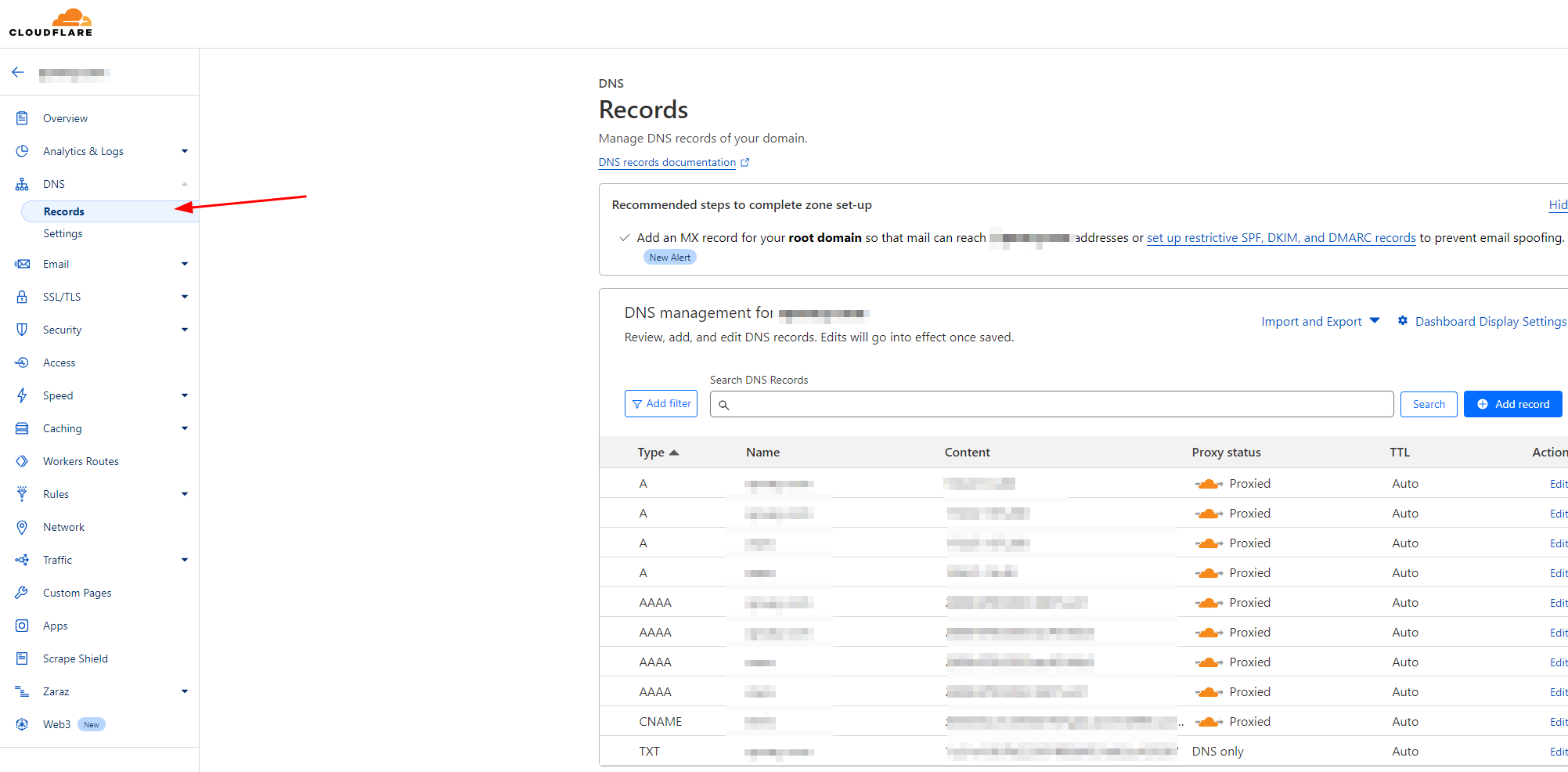
- Go to Cloudflare DNS settings
- Add a CNAME entry using values provided by the Qovery Console
- The proxy mode can remain enabled


Step 3: Configure SSL/TLS Settings
The last step to configure the domain Cloudflare side properly is to use the Full TLS encryption for proper custom domain functionality.- Navigate to SSL/TLS settings in Cloudflare
- Select Full encryption mode
Step 4: Access Restriction Options
You have two options for restricting access to your application:Option 1: IP Whitelisting
Add Cloudflare IP ranges to Qovery’s advanced settings to allow only Cloudflare traffic.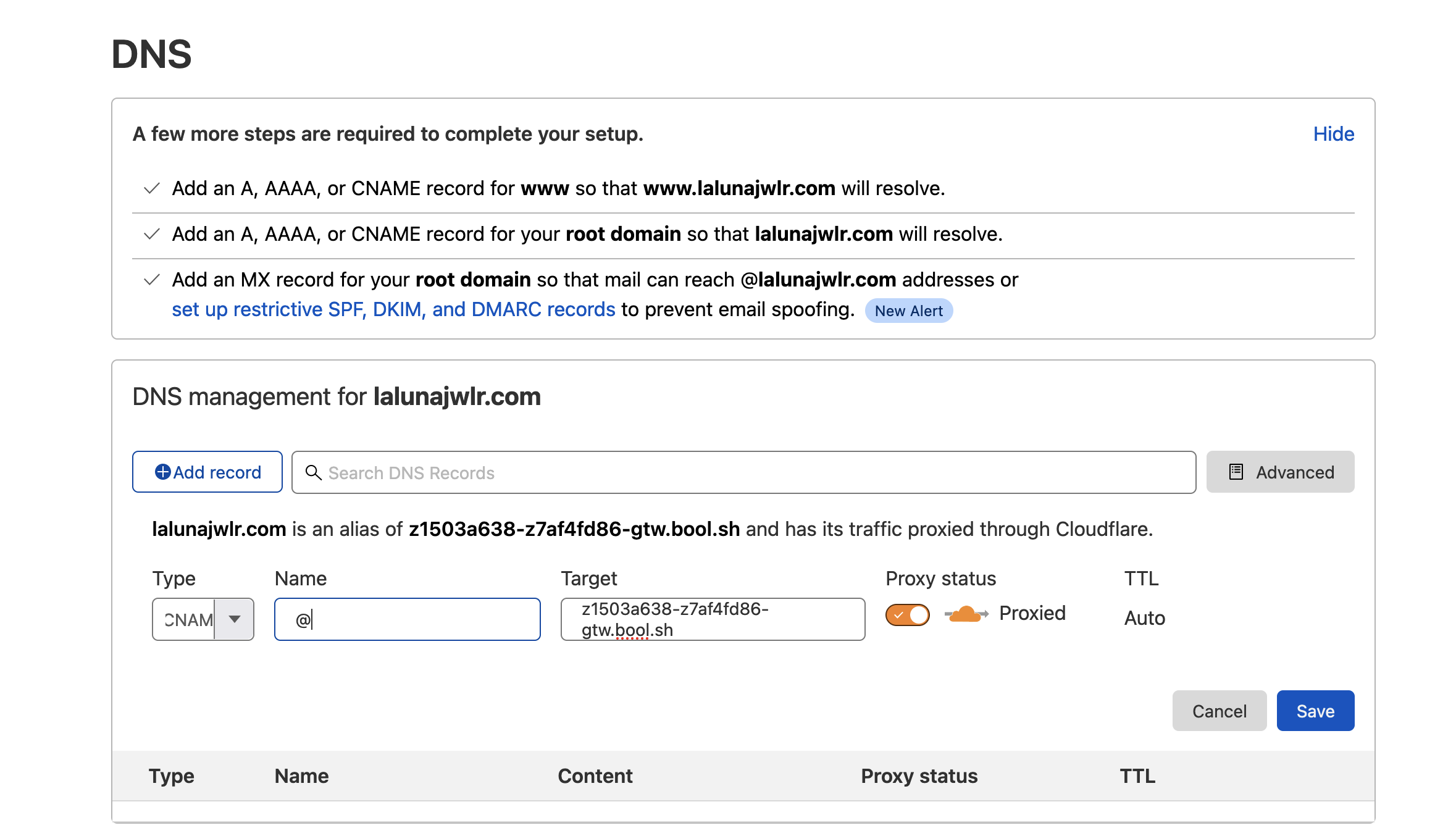
Option 2: Cloudflared Tunnel
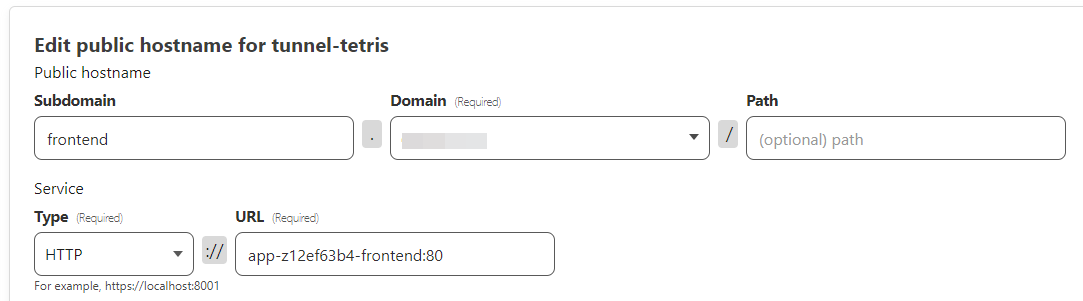
Cloudflared establishes outbound tunnels between resources and Cloudflare’s network, enabling tunnel-based access without public exposure.
Verification
Once configured, your application should be accessible via your custom domain through Cloudflare’s network.

Additional Configuration
Advanced Cloudflare Features
You can leverage Cloudflare’s additional features:


Troubleshooting
Domain not resolving
Domain not resolving
- Verify CNAME record is correct
- Check DNS propagation (can take up to 48 hours)
- Ensure proxy mode is enabled in Cloudflare
SSL/TLS errors
SSL/TLS errors
- Confirm “Full” encryption mode is selected
- Wait for SSL certificate provisioning (5-10 minutes)
- Check that “Domain behind a CDN” toggle is enabled in Qovery
Wildcard domain shows an error and serves the wrong certificate
Wildcard domain shows an error and serves the wrong certificate
- “Generate certificate” is enabled on a wildcard domain (
*.app.example.com). Qovery cannot issue wildcard certificates on a Cloudflare zone, so the certificate stays pending and the service shows an error. - Disable “Generate certificate”, enable “Domain behind a CDN”, redeploy the service and switch the Cloudflare record to Proxied.
502 Bad Gateway errors
502 Bad Gateway errors
- Verify application is running in Qovery
- Check that the CNAME points to the correct Qovery domain
- Ensure Cloudflare IP ranges are whitelisted if using IP restriction
Related Documentation
Custom Domains
Learn about custom domain configuration
SSL/TLS Certificates
Understand SSL/TLS certificate management
Advanced Settings
Configure advanced service settings
Networking
Learn about networking and ingress